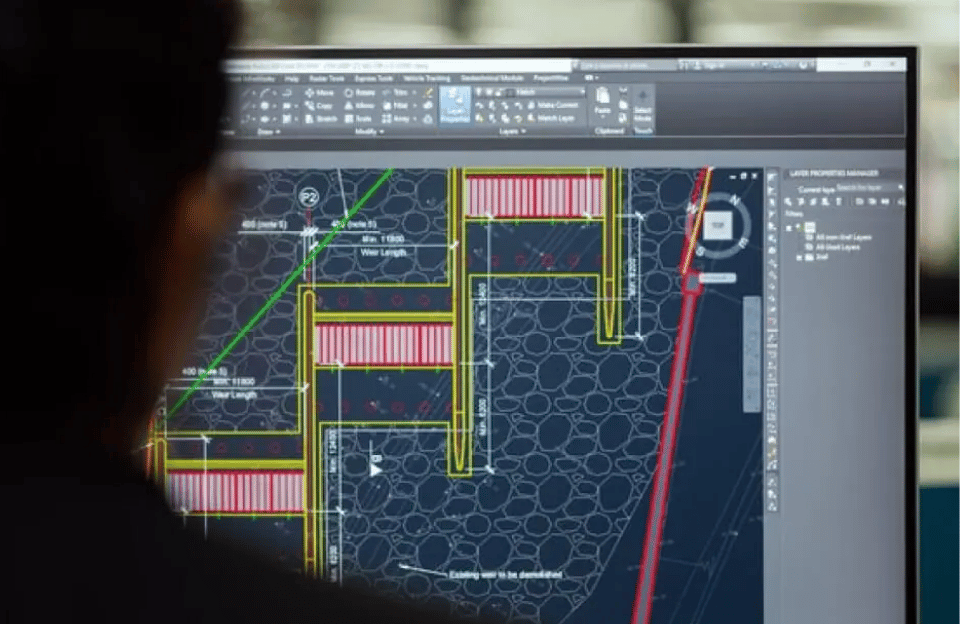
For millions of engineers, architects, and designers, the digital workspace isn\’t defined by an office, but by a software interface: Computer-Aided Design (CAD). Within programs like AutoCAD, SolidWorks, Fusion 360, and CATIA, professionals spend thousands of hours translating ideas into precise digital models. Yet, the most significant productivity revolution in this space isn\’t a new AI tool or a rendering engine—it\’s the humble keyboard shortcut.
Mastering shortcuts is the unspoken divide between the proficient and the truly fluent CAD operator. It\’s the difference between a staccato, menu-driven workflow and a seamless, almost musical, act of creation.
The Philosophy of the Shortcut: Flow State vs. Friction
Every time a user reaches for the mouse, navigates a dropdown menu, and clicks an icon, they break their cognitive flow. This \”context switching\” might cost only a second or two, but multiplied over a career, it amounts to hundreds of lost hours.
\”Shortcuts are more than time-savers; they\’re cognitive preservers,\” explains Maya Chen, a veteran mechanical designer at AeroDynamic Systems. \”When I\’m modeling a complex gear assembly, my focus needs to be on spatial relationships and tolerances, not on hunting for the \’Extrude\’ command. My fingers know \’E\’ + \’Enter\’. That keeps me in the zone.\”
This \”flow state\”—a term borrowed from psychology where a person is fully immersed and focused—is the holy grail of creative and technical work. Shortcuts are a direct pathway to achieving it.
The Essential Toolkit: From Universal to Software-Specific
While each CAD platform has its own ecosystem, some universal principles and common shortcuts form the foundation of efficient work.
The Universal Classics:
-
Ctrl + S (Save): The muscle memory that haunts every designer\’s dreams.
-
Ctrl + Z / Ctrl + Y (Undo/Redo): The digital safety net for fearless experimentation.
-
Ctrl + C, Ctrl + V, Ctrl + X (Copy, Paste, Cut): The fundamental building blocks of iterative design.
-
Mouse Wheel: The universal navigator—pan (hold), zoom (roll), and orbit (often with Ctrl or Shift).
Software-Specific Power Moves:
-
In AutoCAD:
-
L + Enter: Draw a Line. The start of almost everything.
-
TR + Enter: Trim. Essential for cleaning up geometry.
-
F8: Toggle Ortho mode (forcing lines to 90-degree angles).
-
\”MA\” + Enter: Match Properties—the \”format painter\” for CAD.
-
-
In SolidWorks & Fusion 360 (Parametric Modeling):
-
S Key: The \”Shortcut Bar\” or \”S-key menu\”—a context-sensitive toolbox that appears right under your cursor.
-
Ctrl + Click & Drag: Instant copy of a sketch or feature.
-
Q: Quick access to commonly used tools in Fusion 360.
-
Ctrl + 1, 2, 3, etc.: Standard view orientations (Front, Back, Isometric).
-
Beyond the Keyboard: Customization is King
The true power users don\’t just learn the default shortcuts—they customize them. Most professional CAD programs allow for extensive keyboard and mouse customization.
-
Programmable Mice: Buttons can be mapped to commands like \”Save,\” \”Undo,\” or \”Measure.\”
-
Spacemouse/3D Connexion Devices: These specialized controllers allow for intuitive 3D navigation with one hand while the other works the mouse for sketching.
-
Custom Aliases & Macros: Why type \”RECTANGLE\” when you can type \”R\”? Users can create their own command aliases or record multi-step processes (macros) and assign them to a single key or button.
\”My workspace is an extension of my mind,\” says David Park, an architectural BIM manager. \”I\’ve programmed my mouse\’s side buttons to cycle through view styles—wireframe, shaded, realistic. It\’s my own cockpit for building design. The software adapts to me, not the other way around.\”
The Learning Curve: Building Muscle Memory
Adopting shortcuts requires deliberate practice. The transition can feel slower at first, as the brain rewires its pathways.
Pro Tips for Mastery:
-
Start with 5: Pick five most-used commands (Line, Trim, Extrude, Save, Undo) and force yourself to use only the keyboard for a week.
-
Print a Cheat Sheet: Keep a physical list of top shortcuts by your monitor until they become automatic.
-
Use the Command Line/Search Bar: In many programs, simply typing the first few letters of a command is faster than clicking. It reinforces the command name.
The Future: Voice, Gesture, and AI
The evolution continues. Emerging interfaces are exploring:
-
Voice Commands: \”Fusion, create a cylinder 50mm in diameter.\”
-
Gesture Control: Using devices like the Leap Motion to manipulate models in thin air.
-
AI-Powered Predictions: The software learning your workflow and surfacing the next likely command before you even reach for it.
Yet, the tactile, instantaneous nature of a keyboard shortcut will likely remain the core of the high-speed CAD interface for years to come.
Conclusion: Work Smarter, Not Harder
In the high-stakes, detail-oriented world of CAD, efficiency isn\’t just about speed—it\’s about precision, focus, and reducing cognitive fatigue. Learning shortcuts is the single most effective investment a designer can make in their own craft. It transforms the software from a complex tool into a natural extension of creative intent.
So, the next time you watch a seasoned designer fly through a model, listen. The rapid-fire clatter of keys isn\’t just noise—it\’s the sound of someone thinking, unhindered, bringing an idea to life.
Try This Today: In your CAD program of choice, commit to using only keyboard shortcuts for your next five commands. Feel the friction fade, and the flow begin.